
This document is relevant for: Trn2, Trn3
Profiling a vLLM Inference Workload on AWS Trainium#
This tutorial shows how to capture and view system-level and device-level profiles for a vLLM Neuron inference workload on AWS Trainium using Neuron Explorer.
Overview#
By following this tutorial you will learn how to:
Serve a multimodal model with the vLLM Neuron plugin on AWS Trainium
Capture system and device profiles using the built-in HTTP profiler interface
View and analyze the profiles in Neuron Explorer
Prepare your environment#
Follow the How to set up vLLM Neuron to install and configure the vLLM Neuron plugin on a supported Trainium instance (trn2.48xlarge recommended). The setup guide covers DLAMI, source install, and container options.
Step 1: Save a smaller version of your model#
When profiling LLMs it is usually desirable to use only a subset of the model’s layers to keep profiling data manageable and analysis focused. The following script truncates the Qwen3-VL-2B-Instruct text decoder to 4 layers while keeping the vision encoder intact:
import transformers

model_id = "Qwen/Qwen3-VL-2B-Instruct"
config = transformers.AutoConfig.from_pretrained(model_id)
config.text_config.num_hidden_layers = 4
tokenizer = transformers.AutoTokenizer.from_pretrained(model_id)
processor = transformers.AutoProcessor.from_pretrained(model_id)
output_dir = "4layer_qwen3_vl"

model = transformers.AutoModelForImageTextToText.from_pretrained(model_id, config=config)
model.save_pretrained(output_dir)
tokenizer.save_pretrained(output_dir)
processor.save_pretrained(output_dir)
Save as save_4layer_qwen_vl.py and run:
python3 ./save_4layer_qwen_vl.py
Step 2: Start the vLLM server with profiling enabled#
In this step, you will launch a vLLM server with the Neuron profiler enabled. The profiler is activated by passing --profiler-config at startup, and the profiling output is configured via --additional-config.
Note
The "profiler": "cuda" value in the command below is a vLLM abstraction that mounts the HTTP profiler endpoints. On Neuron, it triggers the Neuron Runtime profiler under the hood — no CUDA is involved.
First, set the following environment variables to enable debug symbols in the compiled graphs:
export XLA_IR_DEBUG=1
export XLA_HLO_DEBUG=1
export NEURON_FRAMEWORK_DEBUG=1
Then start the server using the truncated 4-layer model from Step 1:
vllm serve 4layer_qwen3_vl \
    --tensor-parallel-size 8 \
    --max-num-seqs 4 \
    --max-model-len 4096 \
    --profiler-config '{"profiler": "cuda"}' \
    --additional-config '{
      "override_neuron_config": {"enable_bucketing": false},
      "neuron_profiler": {
        "activities": ["device_profile", "system_profile"],
        "output_dir": "./neuron_profiles"
      }
    }'
Note
If you encounter an EFA affinity error (common in containers or instances without EFA configured), set export NEURON_SKIP_EFA_AFFINITY=1 before starting the server. This skips an optional CPU performance optimization and does not affect profiling correctness.
Wait for the server to print Uvicorn running on ... before proceeding.
Step 3: Capture a profile#
Once the server is ready, use the HTTP endpoints to control profiling.
Start profiling:
curl -X POST http://localhost:8000/start_profile
Send a representative request:
curl http://localhost:8000/v1/chat/completions \
    -H "Content-Type: application/json" \
    -d '{
      "model": "4layer_qwen3_vl",
      "messages": [{"role": "user", "content": [
        {"type": "text", "text": "Describe the weather today."}
      ]}],
      "max_tokens": 64
    }'
Stop profiling:
curl -X POST http://localhost:8000/stop_profile
After stopping, the neuron_profiles directory will contain your profile data:
neuron_profiles/
  i-<instance_id>_pid_<pid>/<timestamp>/
    profile_nc_0_session_0.ntff    # Device profile
    ntrace.pb                      # System trace
    trace_info.pb                  # Trace metadata
  neffs/
    graph_<hash>.neff              # Compiled NEFFs (auto-copied)
Step 4: View profiles in Neuron Explorer#
Neuron Explorer ingests the profile directory and serves a web UI for analysis. It automatically matches the NTFF device profiles with the corresponding NEFF compute graphs.
Ingest and launch the UI:
neuron-explorer view -d ./neuron_profiles \
    --data-path ./ne_workspace \
    --display-name "qwen3-vl-2b-profiled"
The command will output a URL:
View profile at http://localhost:3001/profile/qwen3-vl-2b-profiled
If running on a remote instance, set up SSH port forwarding for ports 3001 and 3002:
ssh -i ~/my-ec2.pem \
    -L 3001:localhost:3001 \
    -L 3002:localhost:3002 \
    ubuntu@<PUBLIC_IP> -fN
Important
You must forward both ports. The UI on port 3001 calls the API on port 3002. If you only forward one, the page loads but shows no data.
Open http://localhost:3001/profile/qwen3-vl-2b-profiled in your browser.
Step 5: Analyze the profile#
The Neuron Explorer UI provides a System Timeline and a Device Timeline that are linked together.
System Timeline
The System Timeline shows how a request flows through the stack: framework, framework stream, Neuron Runtime, and Neuron Device. Events like nrt_tensor_write, nrta_execute_schedule, kbl_exec_wait, and nc_exec_running appear chronologically:
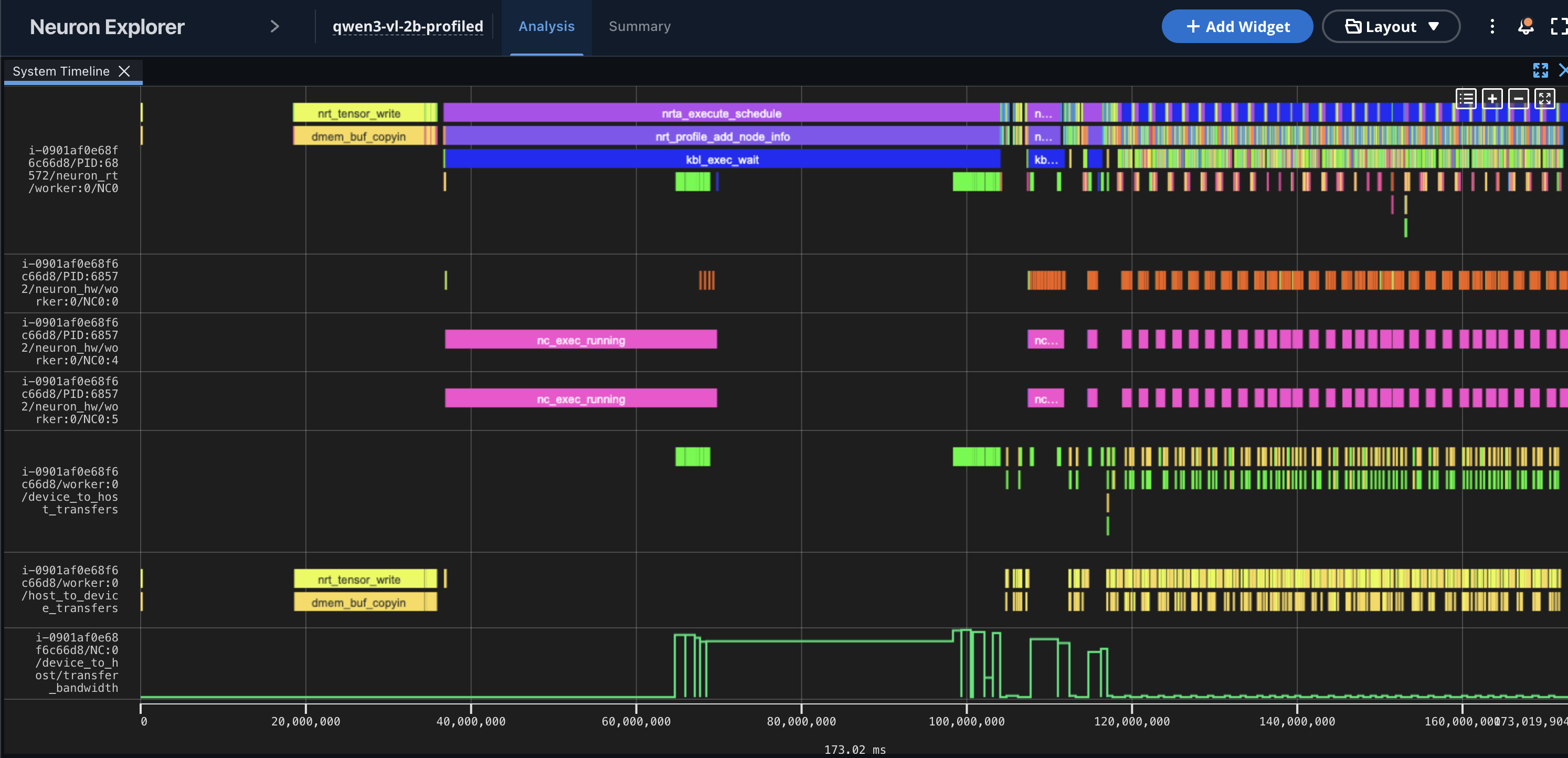
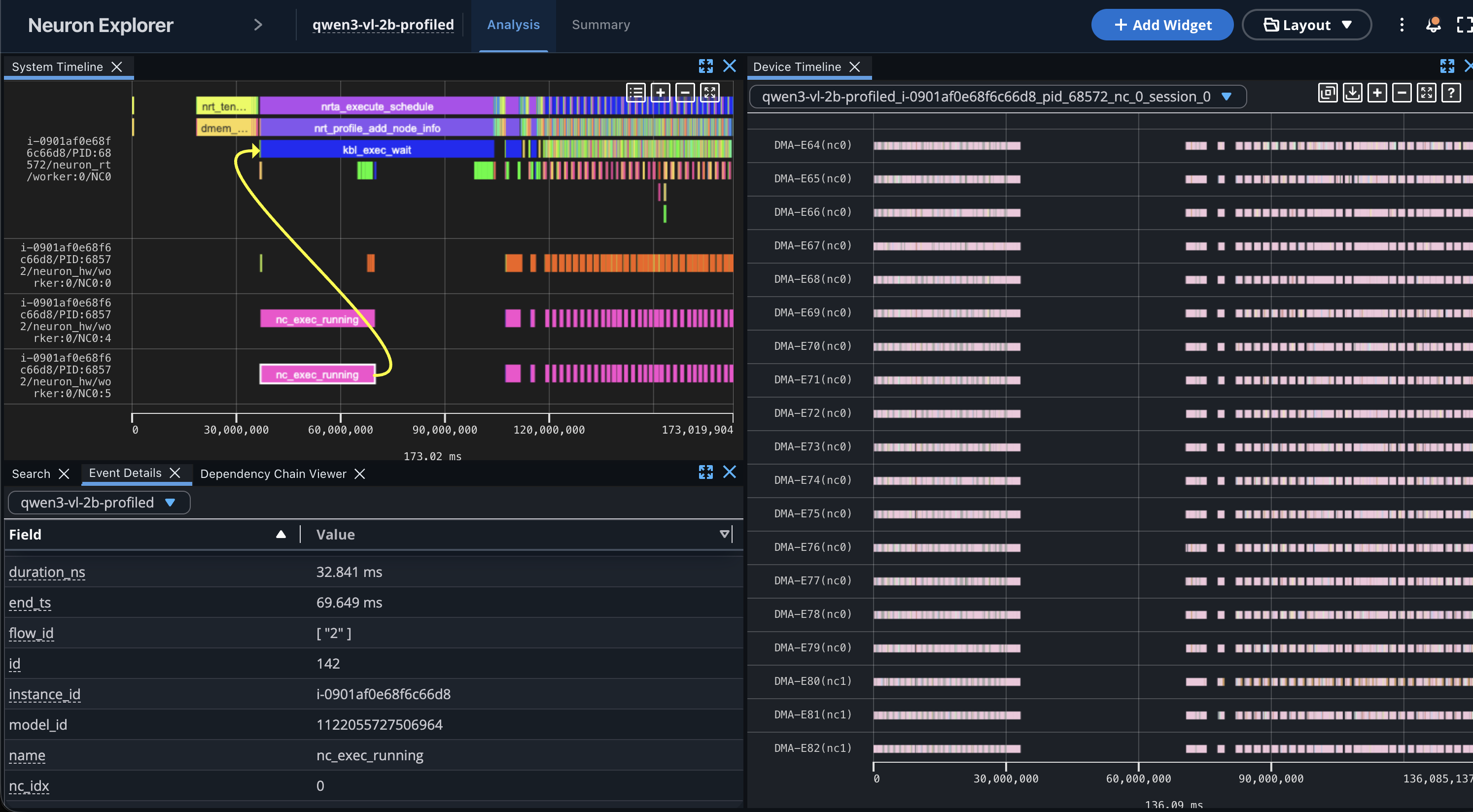
Click on any nc_exec_running event to view details such as duration, model ID, and NeuronCore index. Neuron Explorer automatically links system events to their corresponding device-level profiles.
System-to-Device linking
Selecting an execution event in the System Timeline reveals the linked Device Timeline alongside event details. This lets you trace from a high-level runtime call down to the hardware engine execution:
Device Timeline
The Device Timeline shows per-engine execution across all hardware units — DMA engines, Sync, Tensor, Vector, Scalar, and GpSimd:
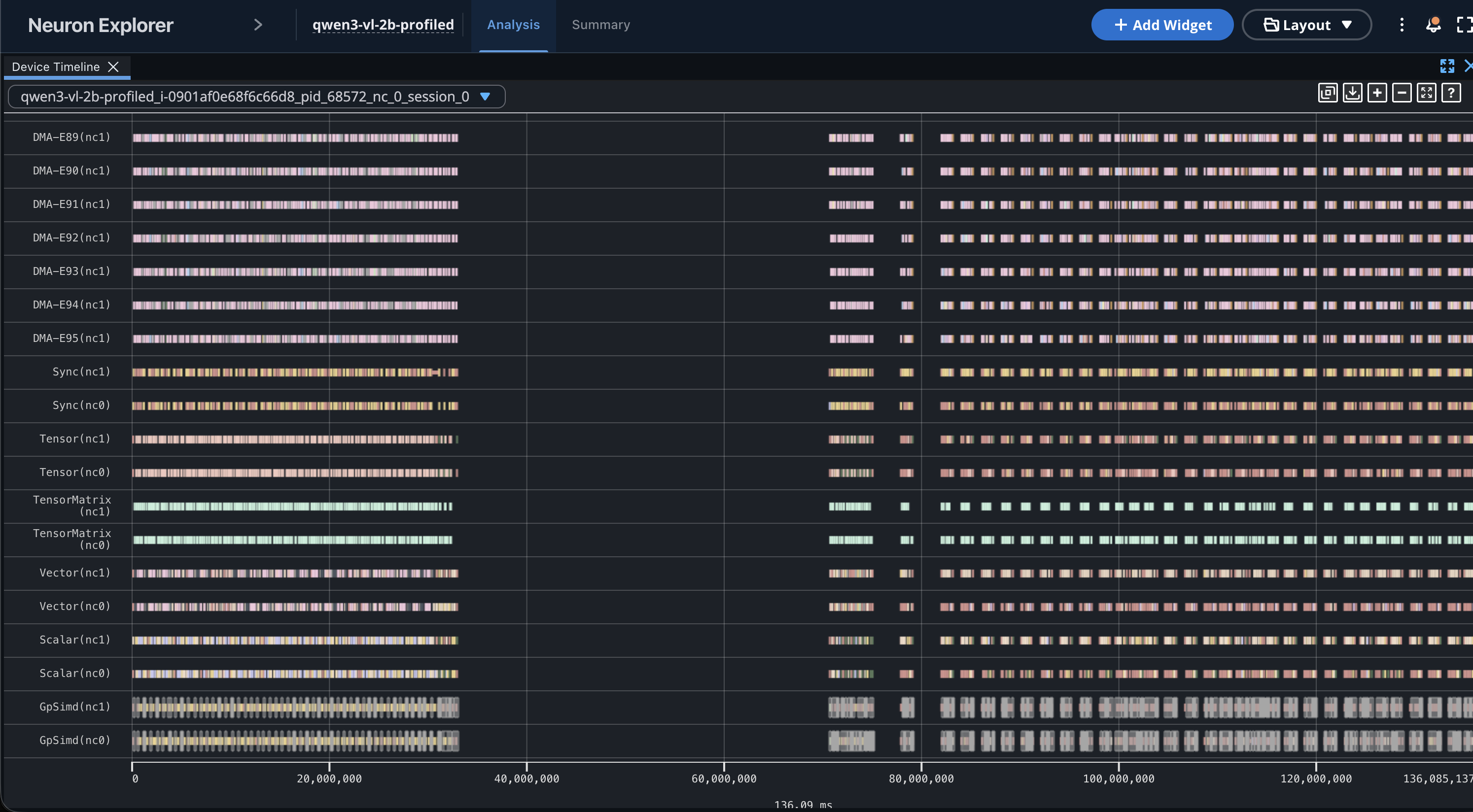
This view lets you identify idle engines, DMA bottlenecks, and compute utilization patterns.
Confirmation#
You have successfully captured and visualized both system-level and device-level profiles for a vLLM Neuron inference workload. Use this workflow to identify performance bottlenecks, apply optimizations, and re-profile to measure improvements.
Clean up#
After completing your profiling experiments, remember to terminate the instance you launched to avoid unnecessary costs.
Next steps#
For advanced profiling options (iteration control, disaggregated inference profiling), see How to profile vLLM Neuron workloads.
Learn more about the System Timeline and Device Timeline views in Neuron Explorer.
Try profiling your own model to analyze its workload. Identify performance gaps, apply optimizations, and profile again to measure the improvements.
This document is relevant for: Trn2, Trn3