
This document is relevant for: Trn2, Trn3
How to profile memory usage in torch-neuronx#
This topic discusses how to profile device memory usage during
torch-neuronx workloads on AWS Trainium. It shows how to read the memory
statistics, check fragmentation, and record a memory snapshot. This helps you
find the cause of out-of-memory (OOM) errors and of memory growth over time,
and see how your model uses memory.
torch-neuronx provides memory statistics, allocation snapshots, and a
segment-pool analysis for fragmentation. You can open a snapshot in Neuron
Explorer or in the PyTorch memory visualizer.
Important
The Neuron allocator is asynchronous. Always call
torch.neuron.synchronize() before you read any memory statistic.
Without it, a read shows only the work that the device has completed so
far, not all the work that your program has queued.
Prerequisites#
A working torch-neuronx installation: See Quickstart: Install and verify torch-neuronx.
A reproducible workload: Have the workload you want to profile on a Trainium instance and able to run a single step.
Familiarity with PyTorch memory APIs: Prior experience helps but isn’t required.
Profile memory usage#
1: Understand the available memory APIs
torch-neuronx provides the memory APIs below. These stats are collected by
default with near-zero overhead and help you see how your code allocates,
frees, and reuses memory on the device.
The allocator reserves large segments of device memory from the Neuron runtime and places tensors as blocks inside them. See Guidelines for memory management.
torch_neuronx.memory_allocated()— live bytes currently held by tensors.torch_neuronx.max_memory_allocated()— peak live bytes since the last reset.torch_neuronx.memory_reserved()/max_memory_reserved()— bytes the caching allocator holds from the runtime (reserved >= allocated).torch_neuronx.memory_summary()— a formatted table of the above.torch_neuronx.memory_stats()— the same numbers as a flat dict for logging.torch_neuronx.reset_peak_memory_stats()— reset the peak counters, typically once per step.torch_neuronx.reset_accumulated_memory_stats()— reset the cumulative allocation/free counters.torch_neuronx.empty_cache()— return cached-but-free segments to the runtime.
Note
At LNC 1 on Trn2 and Trn3, the device memory total is two times the
capacity of one logical NeuronCore.
torch_neuronx.get_device_properties(device).total_memory reports the
HBM of one full stack, and two logical NeuronCores share one stack at
LNC 1. The total and free values in segment_pool_analysis_summary()
use the same total. To get the capacity of one logical NeuronCore, scale
the value by active_LNC / default_LNC: 12 GiB on Trn2 and 18 GiB on
Trn3. The default LNC is 2 on Trn2 and Trn3. On Trn1 and Inf2 the value
is correct at every LNC.
2: Read the memory stats for a block of code
Use these stats to see how much device memory your code uses. Synchronize before each read, so the stats include all queued allocations.
The example below has two parts. First, it allocates two tensors and reads the allocated and reserved memory. Reserved memory is larger because the allocator holds a whole segment and places both tensors in it. Then it resets the peak counter, allocates a third tensor, and reads the new peak.
import torch
import torch_neuronx

# Part 1: allocate two tensors, then read allocated and reserved memory.
a = torch.randn(1024, 1024, dtype=torch.float32, device="neuron")   # 4 MiB
b = torch.randn(2048, 2048, dtype=torch.bfloat16, device="neuron")  # 8 MiB
torch.neuron.synchronize()

print(torch_neuronx.memory_allocated())   # 12582912  (12 MiB)
print(torch_neuronx.memory_reserved())    # 67108864  (64 MiB)

# Part 2: reset the peak, allocate a third tensor, then read the peak.
torch_neuronx.reset_peak_memory_stats()
c = torch.randn(4096, 4096, dtype=torch.float32, device="neuron")   # 64 MiB
torch.neuron.synchronize()
print(torch_neuronx.max_memory_allocated())  # 79691776  (76 MiB)
After part 1, memory_summary() prints the same stats as a table:
===========================================================================
  Neuron Memory Summary, Device 0
===========================================================================
  Allocations: 2  |  Frees: 0
  OOMs: 0  |  Alloc Retries: 0
===========================================================================
  Metric              | Current    | Peak       | Allocated  | Freed
---------------------------------------------------------------------------
  Allocated Memory   |     12 MiB |     12 MiB |     12 MiB |        0 B
  Reserved Memory    |     64 MiB |     64 MiB |     64 MiB |        0 B
  Active Memory      |     12 MiB |     12 MiB |     12 MiB |        0 B
===========================================================================
3: Inspect fragmentation
The segment-pool analysis reports fragmentation inside segments and between segments. An allocation can fail when the total free memory is large but is split into small regions. To check the fragmentation of the current pool, run:
from torch_neuronx import memory as mem

torch.neuron.synchronize()
print(mem.segment_pool_analysis_summary())
# Reports total/reserved/free, largest free chunk, internal/external
# fragmentation, a fragmentation index, and memory density.
The summary reports these allocator-quality values:
Internal fragmentation: the bytes that block rounding adds. It is the allocated block size minus the bytes that tensors use.
External fragmentation: the free bytes that are outside the largest free region and outside the cached blocks. A large allocation cannot use these bytes.
Fragmentation index:
(internal + external fragmentation) / total free, from 0 (no fragmentation) to 1 (all free memory is fragmented). A lower value is better.Memory density:
reserved / address span, the part of the address range between the first and the last segment that the allocator holds. A value of 1 means that the segments have no gaps between them. A lower value means gaps that NRT cannot use for a large segment. A higher value is better.
If the fragmentation index is high, see Guidelines for memory management for allocator tuning.
4: Visualize memory allocation history
To see where memory is allocated and how it changes over time, record a
memory snapshot. torch-neuronx allows you to record allocation history with Python stack
traces; you can view it in Neuron Explorer (recommended) or the PyTorch
memory visualizer. Both views show the same allocation data with the same
peaks. Neuron Explorer plots allocations by timestamp, so they align with the
system profile. The PyTorch memory visualizer plots them by allocation index.
Option A — Neuron Explorer (recommended). Run the workload under the Neuron profiler so the framework snapshot lands next to the runtime system profile. The runtime stamps each allocation with a trace ID, so the snapshot lines up with the runtime HBM view.
import torch
import torch_neuronx
from torch_neuronx.profiling import NeuronConfig, ProfileMode, NeuronProfiler
from torch_neuronx import memory as mem
from torch.profiler import profile, ProfilerActivity

cfg = NeuronConfig(
    modes=[ProfileMode.RUNTIME],
    profile_output_dir="./profile_out",
)
profiler = NeuronProfiler(cfg)

mem._record_memory_history()
with profile(
    activities=[ProfilerActivity.CPU, ProfilerActivity.PrivateUse1],
    experimental_config=cfg,
) as prof:
    output = model(inputs)
    torch.neuron.synchronize()
profiler.export_trace(prof)       # writes trace.json into the session dir
profiler.export_snapshot()        # writes memory_snapshot.pickle into the session dir
mem._record_memory_history(enabled=False)
The session directory under profile_out will now hold the system profile
(ntrace.pb), the Chrome trace (trace.json), and
memory_snapshot.pickle. Upload the session directory to Neuron Explorer.
See Get started with Neuron Explorer.
To view the snapshot, click Add Widget in Neuron Explorer and add the Memory Viewer widget. Select the PyTorch Allocator tab, then select a rank:
Hover over an allocation to see its size, address, time, trace ID, and stack trace.
Click an allocation to pin it. The Allocation details panel shows the full stack. Click a source frame to open it in the editor. This link works only if you upload your source code to Neuron Explorer. See Source Code Viewer.
Note
The Neuron Explorer integration currently supports only the active memory timeline view. Support for more views is planned.
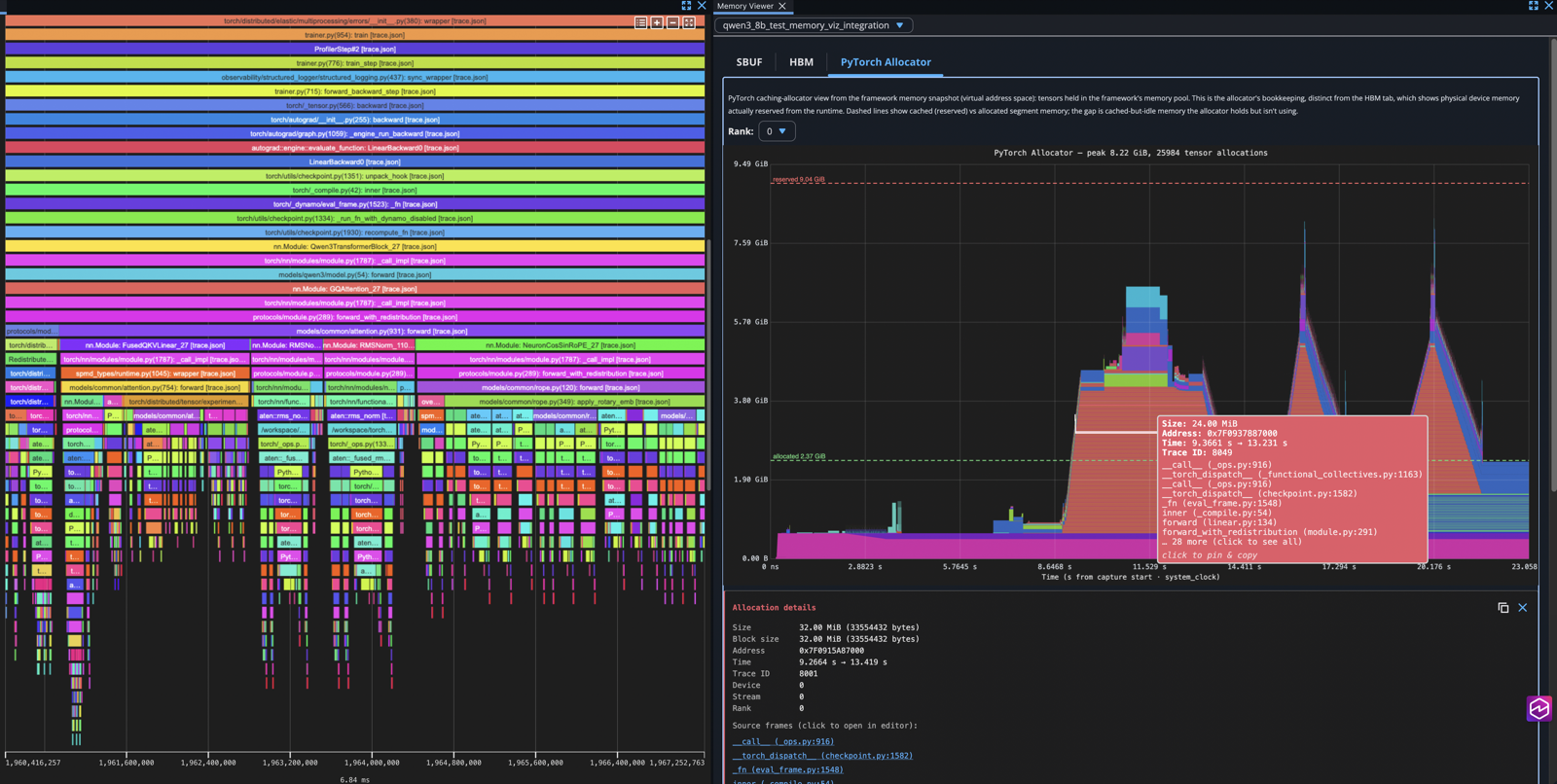
Fig. 4 Neuron Explorer: Memory Viewer, PyTorch Allocator tab#
For example, to profile a TorchTitan training run, set the profiler options in your training config. TorchTitan sets its options in a Python config function, not on the command line. Derive a config from the one that you train with:
# my_configs.py
from torchtitan.trainer import Trainer

def my_run_profiled() -> Trainer.Config:
    config = my_run()  # the config function that you train with
    config.profiler.enable_profiling = True
    config.profiler.profile_freq = 3
    config.profiler.profiler_warmup = 1
    config.profiler.profiler_active = 1
    config.profiler.enable_memory_snapshot = True
    return config
Then select it when you start training:
MODULE=my_configs CONFIG=my_run_profiled ./run_train.sh
TorchTitan writes the trace and the memory snapshot under outputs/profiling/.
For example, for rank 0 at step 3, the trace is
traces/iteration_3/rank0_trace.json.gz and the snapshot is
memory_snapshot/step_000000000003/000000_step_3.pickle.
TorchTitan versions that include
pytorch/torchtitan#5072 also
record Neuron activity. After a profiled step, look for a session directory that
has an ntrace.pb file under neuron_profile/ (see
TORCH_NEURONX_PROFILE_OUTPUT_DIR). By default, only rank 0 records a session.
Copy the TorchTitan trace and snapshot into the session directory, then upload it
to Neuron Explorer:
SESSION=$(dirname "$(ls -t neuron_profile/*/*/ntrace.pb | head -1)")
gunzip -c outputs/profiling/traces/iteration_3/rank0_trace.json.gz > "$SESSION/trace.json"
cp outputs/profiling/memory_snapshot/step_000000000003/000000_step_3.pickle \
   "$SESSION/memory_snapshot.pickle"
If there is no session directory, your TorchTitan version does not record Neuron activity. Open the snapshot in the PyTorch memory visualizer (Option B) instead.
Option B — PyTorch memory visualizer. For a quick framework-only timeline without a full profile, dump the snapshot on its own:
from torch_neuronx import memory as mem

mem._record_memory_history()
# ... run your model ...
torch.neuron.synchronize()
mem._dump_snapshot("snapshot.pickle")
mem._record_memory_history(enabled=False)
Upload snapshot.pickle to the PyTorch memory visualizer to view the active-memory timeline and
allocator history.
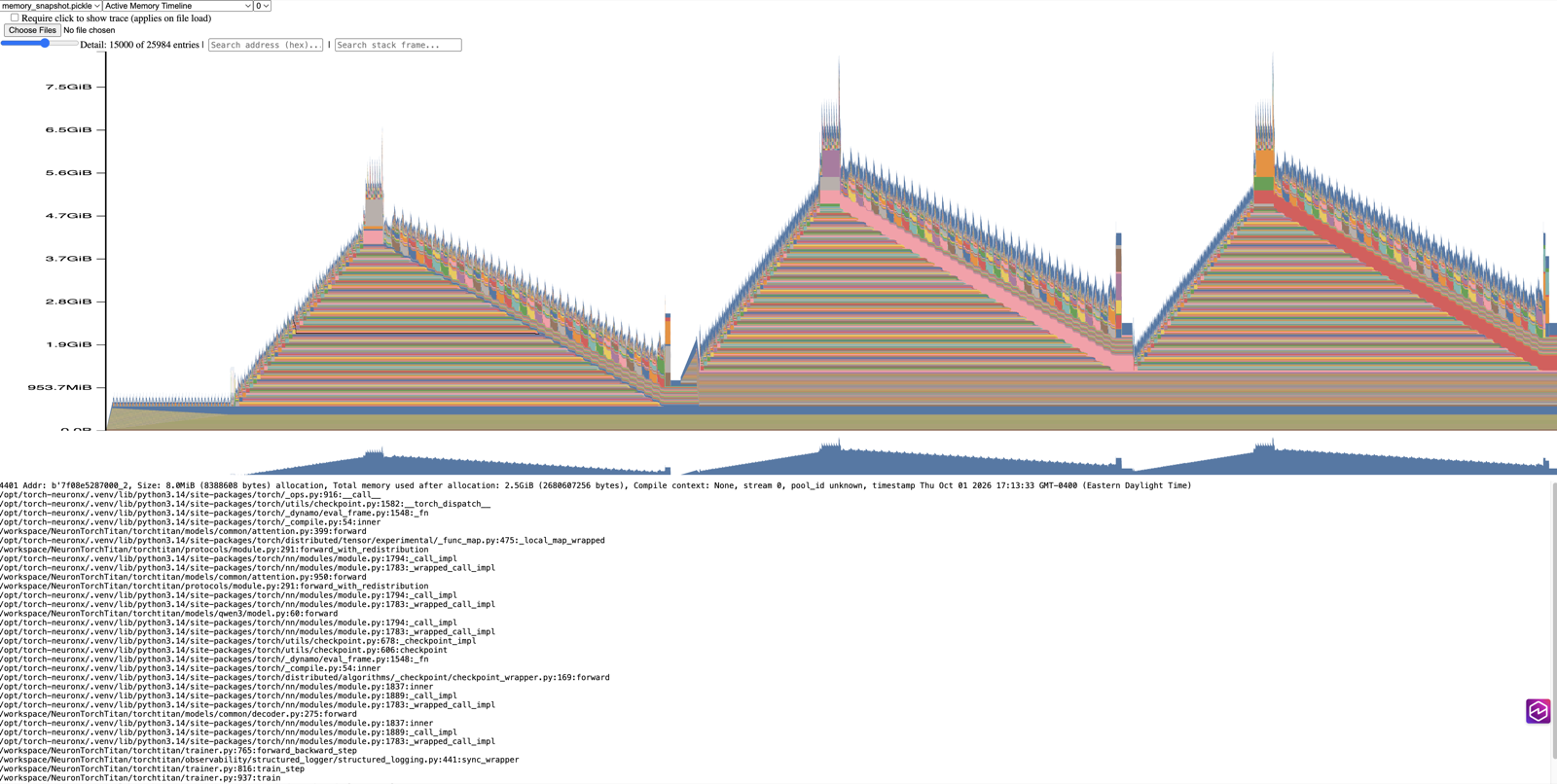
Fig. 5 PyTorch memory visualizer: Active Memory Timeline#
Confirm your work#
To confirm that you recorded a complete memory profile, check that:
For Option A, the session directory under
profile_outhasntrace.pb,trace.json, andmemory_snapshot.pickle.For Option A, the Memory Viewer widget in Neuron Explorer shows the PyTorch Allocator tab with allocations for your rank.
For Option B, the PyTorch memory visualizer opens
snapshot.pickleand shows the active memory timeline.
Common issues#
This section lists common issues with memory profiling and how to solve them.
Memory counters report stale or zero values
Possible solution: Call
torch.neuron.synchronize()before reading. The allocator is asynchronous, so an unsynchronized read can miss in-flight allocations. Also confirm the tensor landed on the Neuron device (not CPU) by checkingtensor.device.
Peak memory drifts higher across steps without a clear owner
Possible solution: Record a memory snapshot (step 4) and open it in the Neuron Explorer Memory Viewer to find the allocating code path. See Memory Viewer.
Workload OOMs even though total free memory looks sufficient
Possible solution: Check
segment_pool_analysis_summary()for a high fragmentation index. If fragmentation is high, see Guidelines for memory management for allocator tuning.
Workload still OOMs after profiling
Possible solution: Check activation checkpointing, gradient accumulation, and batch size before concluding the workload just doesn’t fit.