
This document is relevant for: Inf2, Trn1, Trn2, Trn3
Memory Viewer#
The Memory Viewer in Neuron Explorer offers deep, low-level insight into memory allocation, usage patterns, and potential inefficiencies — going well beyond surface-level metrics. With comprehensive visibility into how memory is consumed across the device, it enables kernel and performance engineers to make informed optimization decisions, reduce debugging time, and improve overall system performance.
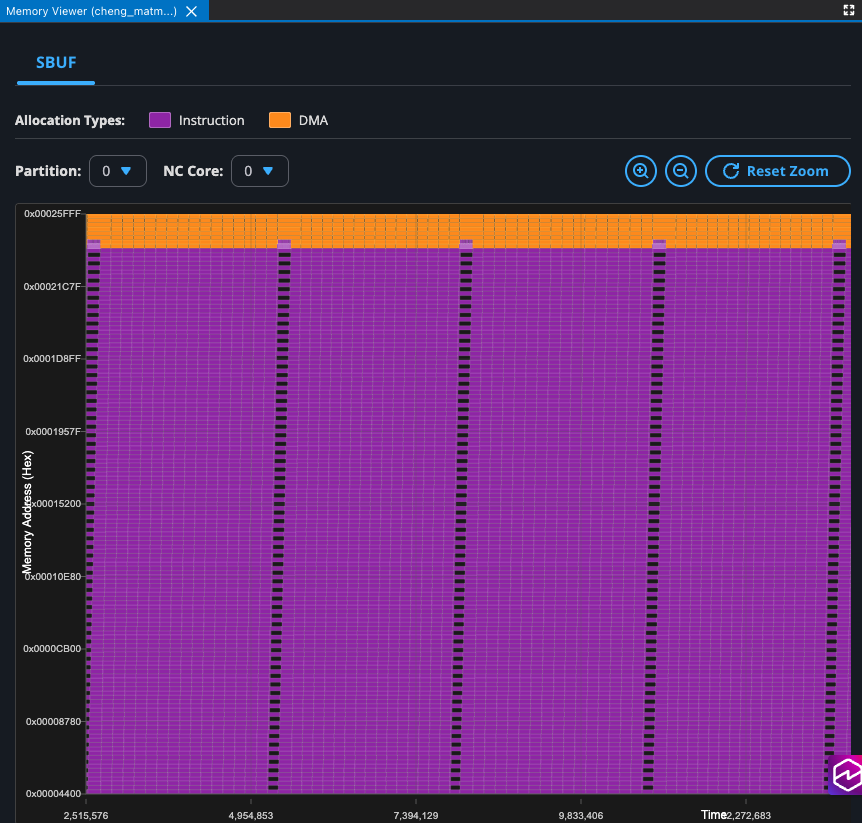
Enable Memory Viewer during Profile Upload#
To view SBUF allocations, check the option ‘Enable Memory Viewer’ when you upload your profile. This option only generates SBUF allocation data. The HBM and PyTorch Allocator tabs don’t require it. For more information, see Device and Framework Memory.
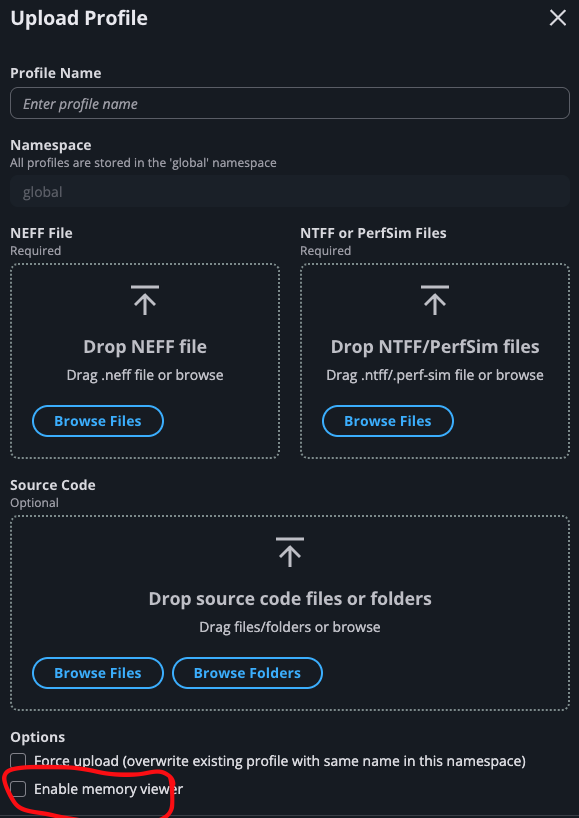
View the Memory Viewer Widget#
Once your profile finishes processing and is ready to view, click the Add Widget button and select ‘Memory Viewer’:
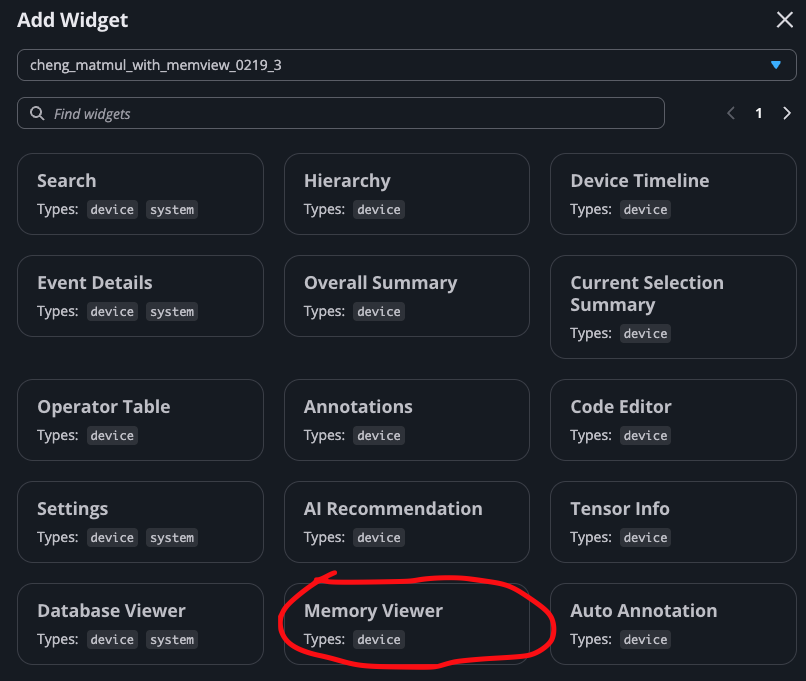
By hovering your mouse over each allocation, you can see the detailed information about this allocation. For allocations triggered by instructions, hover information includes: * Start time and end time * Duration * Start address and end address * Opcode * Operands
For allocations triggered by DMAs, hover information includes: * Partition number * Start time and end time * Duration * Start address and end address * DMA queue name * Block ID
By analyzing memory allocations, you can address memory fragmentation by identifying sparse allocation patterns and potentially rescheduling instructions or DMAs to different addresses to maintain memory compactness. Additionally, you can perform spill/reload analysis to identify opportunities for reducing spills by relocating allocations to available space at alternative addresses.
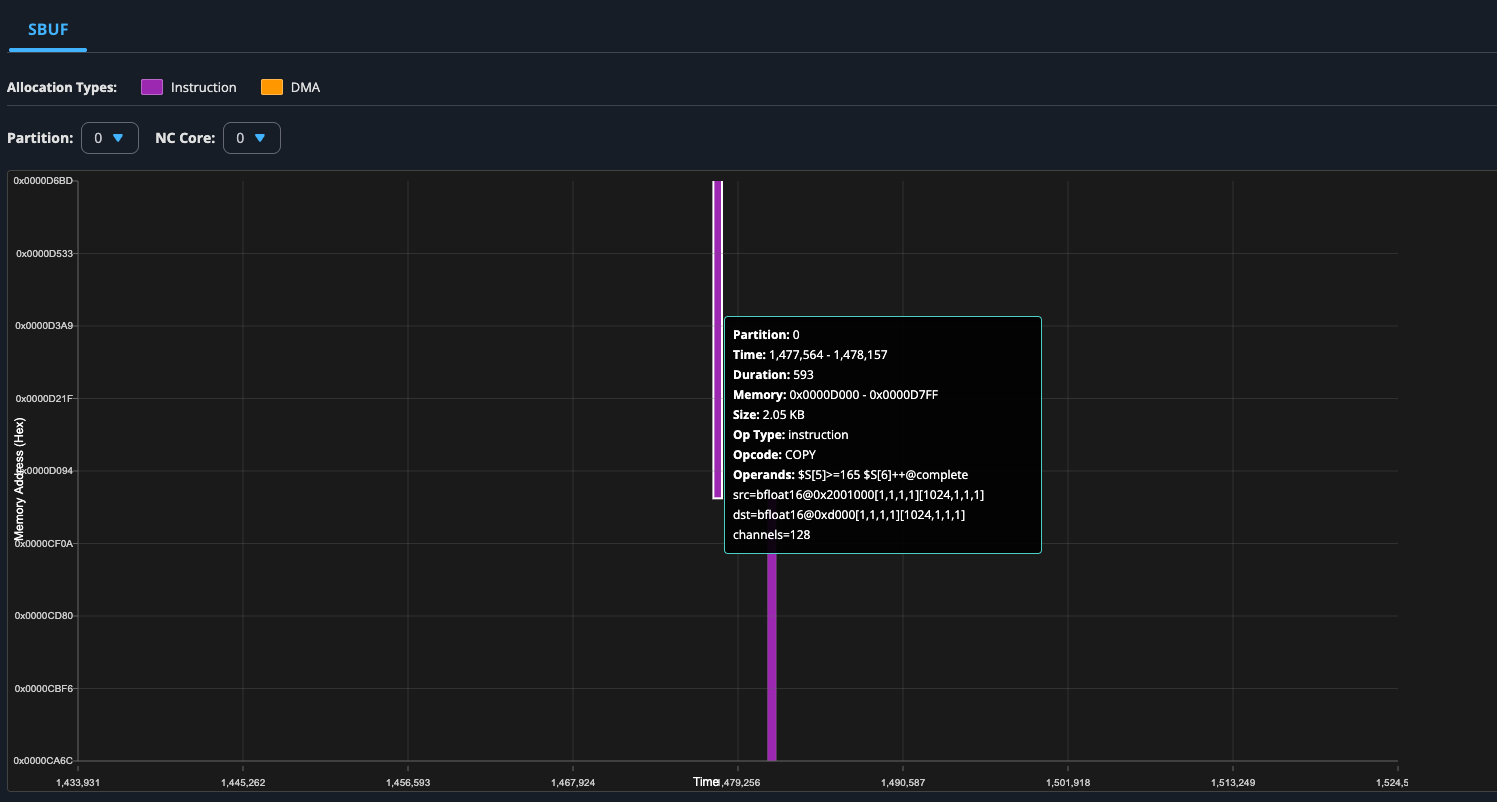
You can also use the dropdown menu to inspect the memory allocations on different partitions and NC cores:
Device and Framework Memory#
In addition to SBUF, the Memory Viewer shows device memory (HBM) allocations from a system profile and the PyTorch caching allocator’s view from a framework memory snapshot. The widget organizes these views into tabs:
Tab |
What it shows |
Data source |
|---|---|---|
HBM |
Physical device memory that the Neuron Runtime allocates on each HBM over time. |
System profile captured with |
PyTorch Allocator |
Tensors that the PyTorch caching allocator holds in its memory pool, in the framework’s virtual address space. |
PyTorch memory snapshot ( |
To open the Memory Viewer for a system profile, click Add Widget and select Memory Viewer. You don’t need to check ‘Enable Memory Viewer’ during upload for these tabs. That option only applies to the SBUF tab. For details on capturing a PyTorch memory snapshot, see Capturing a PyTorch memory snapshot.
HBM Tab#
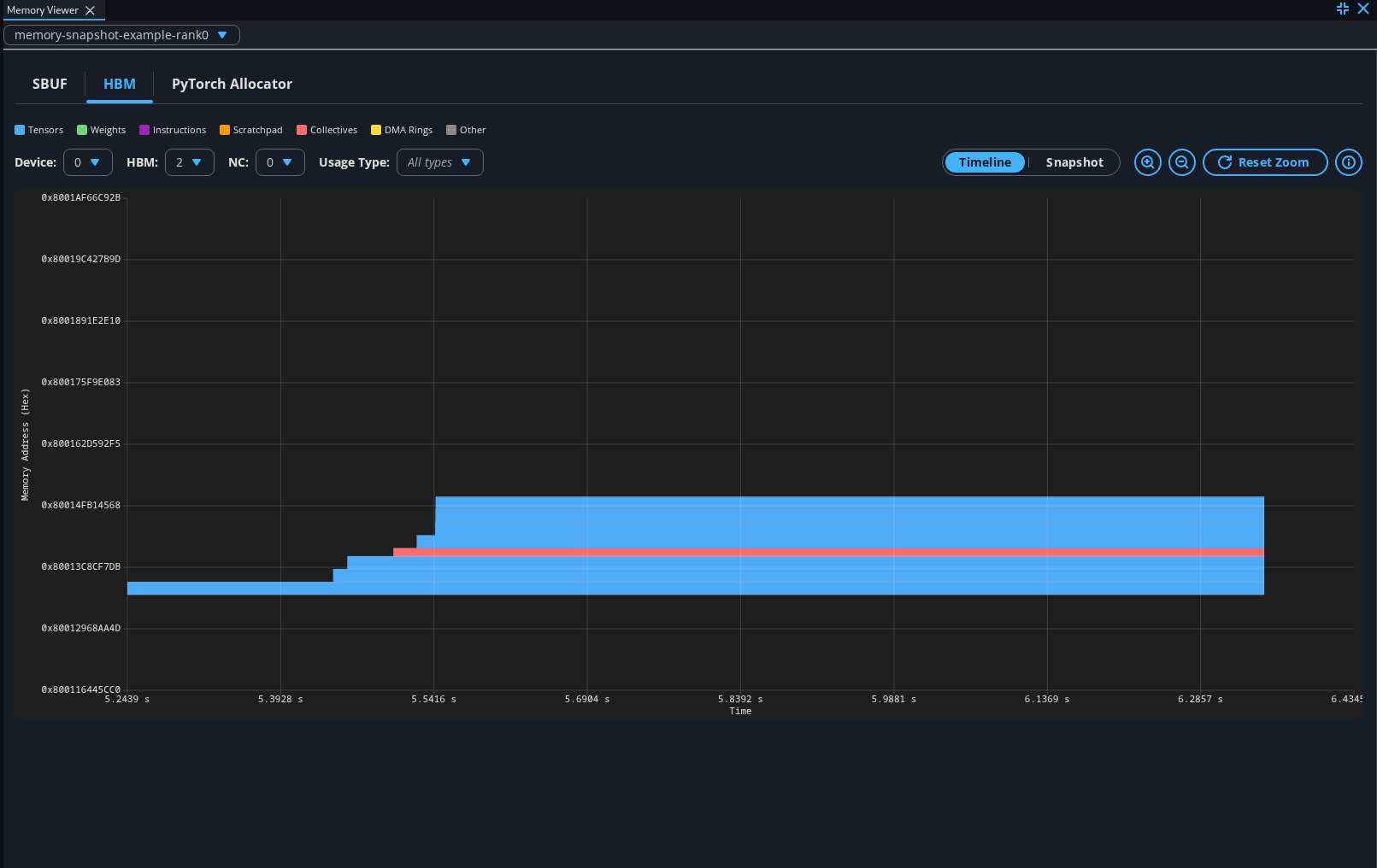
The HBM tab plots each allocation as a band, with time on the horizontal axis and the HBM address on the vertical axis. The time axis is aligned with the System Trace Viewer, so you can compare allocations with runtime and hardware events at the same timestamp. Allocations are colored by usage type, such as tensors, weights, instructions, scratchpad, collectives, and DMA rings.
Use the Device, HBM, and NC (NeuronCore) selectors to choose which memory to display, and the Usage Type filter to show only certain categories. The selectors only offer combinations that contain data.
The HBM tab has two views:
Timeline shows every allocation over the full capture window. Use it to find peak usage, long-lived allocations, and fragmentation.
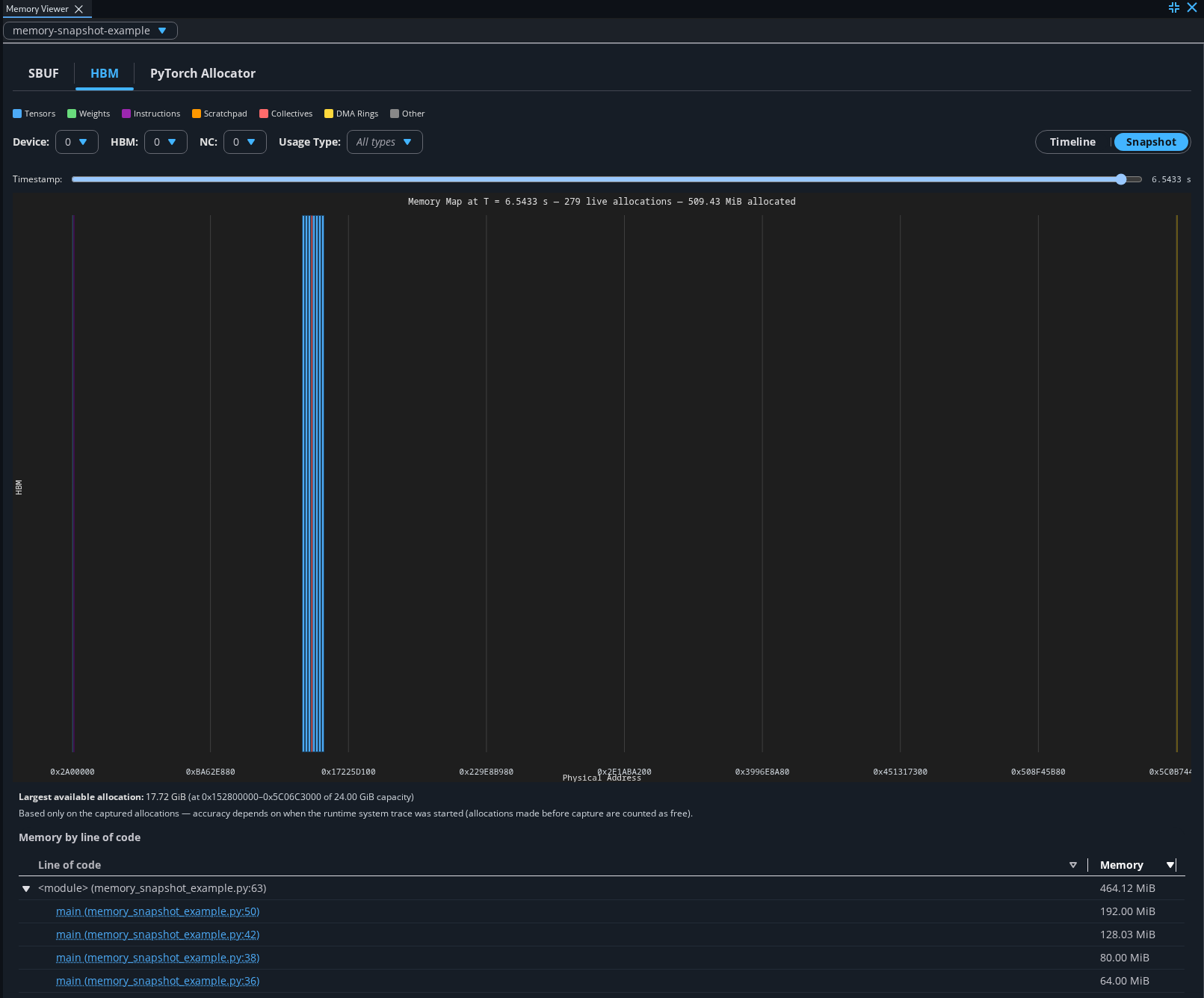
Snapshot shows the allocations that are live at a selected timestamp. It also shows two summaries for that timestamp:
Largest available allocation — the largest contiguous free block within HBM capacity. This value only accounts for allocations that were captured, so allocations made before the trace started are counted as free.
Memory by line of code — live memory grouped by the Python call stack that made each allocation. Expand a row to drill into nested calls. Clicking a source line opens it in the Code Viewer if the source code was uploaded with the profile.
Click an allocation to see its details, including usage type, size, address range, lifetime, device, HBM index, and NeuronCore index. When the profile includes a PyTorch memory snapshot, the details also include the tensor’s call stack, trace ID, and virtual address.
PyTorch Allocator Tab#
The PyTorch Allocator tab shows the active memory timeline from a PyTorch memory snapshot. It shows the same allocation data as the Active Memory Timeline in the PyTorch memory visualizer. Neuron Explorer plots allocations by timestamp instead of by allocation index, so they line up with the System Trace Viewer. The runtime stamps each allocation with a trace ID, which links the snapshot to the runtime allocations in the HBM tab.
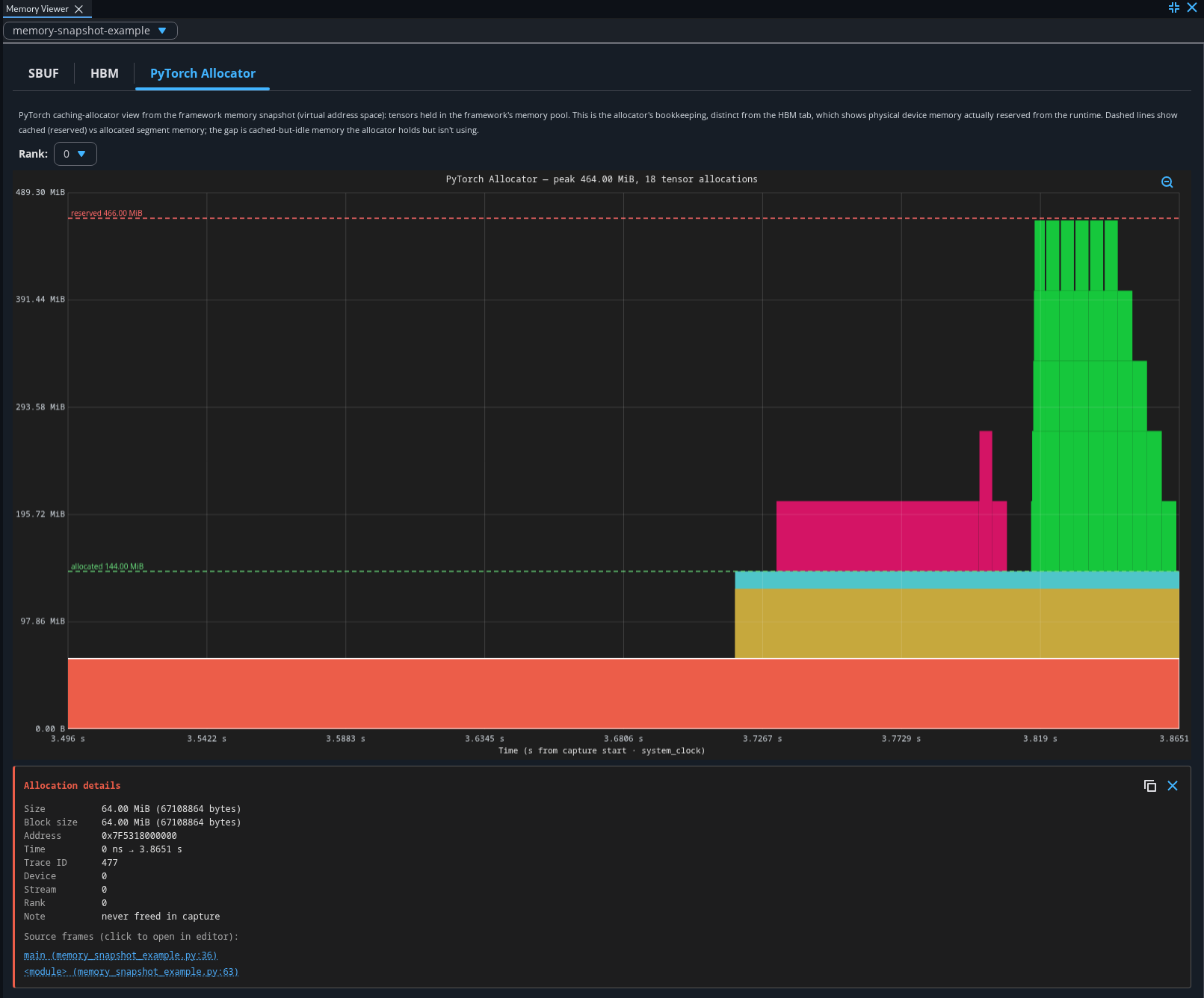
Each band is a tensor allocation in the caching allocator’s virtual address space. Dashed lines show the memory that the allocator has reserved and the memory that is allocated to tensors. The gap between them is memory that the allocator keeps cached but is not using. This is the allocator’s bookkeeping, which is different from the physical device memory shown in the HBM tab.
To view the snapshot, select the PyTorch Allocator tab, then select a rank. You can then interact with the timeline as follows:
Hover over an allocation to see its size, address, time, trace ID, and stack trace.
Click an allocation to pin it. The Allocation details panel shows the full stack. Click a source frame to open it in the Code Viewer. This link works only if you upload your source code to Neuron Explorer. See Source Code Viewer.
Clicking an allocation also highlights the matching runtime events in the System Trace Viewer. See Memory Viewer Integration.
Drag across the chart to zoom into a time range. While zoomed in, click the zoom-out button to return to the full capture.
The following image shows a zoomed-in timeline with an allocation pinned in the Allocation details panel:
Note
The PyTorch Allocator tab currently supports only the active memory timeline view.